

A case is anything your security team has to look into: a vulnerability report from outside, or a security incident. Reports sent through your security center portal arrive as cases automatically. You can also create one yourself with New Case.
Find Your Cases
Open Security Center → Cases. The list shows cases that are not closed, the most urgent deadline first. Filter by Type or Assignee, for example Assigned to Me. Each case has an Assignee who is responsible for it.
Handle a Vulnerability Report
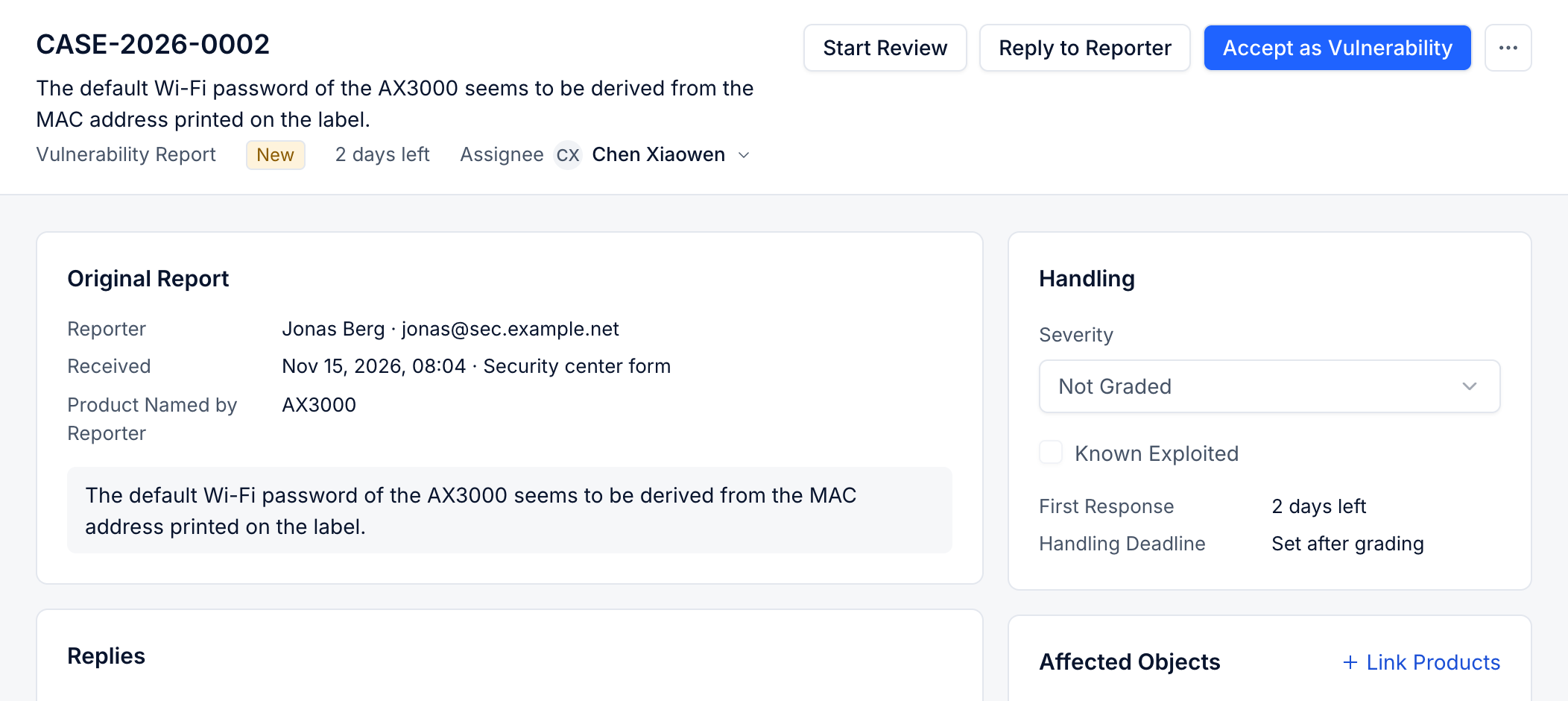
- Open the case. Original Report shows what the reporter sent, including the product they named. Under Affected Objects, choose Link Products to connect the case to your products.
- Choose Start Review.
- Grade the Severity under Handling. The handling deadline is set from the severity. The First Response deadline runs from when the report arrived.
- Choose Reply to Reporter to acknowledge the report and keep them informed. Replies are sent by email and kept in the case.
- Decide:
- Accept as Vulnerability if it is real. Create a New Record, or link it to an Existing Record if the vulnerability is already known. The case becomes Converted to Vulnerability, and you continue in the vulnerability record; see Triage Vulnerabilities.
- Reject if it is invalid, a duplicate or spam.
Handle an Incident
For an incident, choose Start Investigation and fill in the Incident Details as you learn them; they are saved as you type. When you know more, choose Confirm Incident or Rule Out.
If the incident has to be reported to authorities, choose Needs Reporting and choose Confirm and Create. The reporting deadlines start from when you became aware of the incident, so do this without waiting for the investigation to end. See Prepare a Report to Authorities.
Close the Case
Choose Close when nothing more needs to be done. The History of the case keeps every step.
To protect a reporter's privacy once a case is done, choose Anonymize Reporter. Their name, email and phone are no longer shown; the report itself stays.