

A software bill of materials (SBOM) lists the components in one version of your product. Nuxy matches the components against public vulnerability data and keeps matching as new vulnerabilities are published.
Supported Files
- CycloneDX, in JSON or XML
- SPDX, in tag-value, JSON or JSON-LD, or as an archive
- CSV, using Nuxy's template (Download CSV Template in the upload dialog)
You can also enter the components by hand with Enter on the Page, which suits small products without a build-generated SBOM.
Upload the File
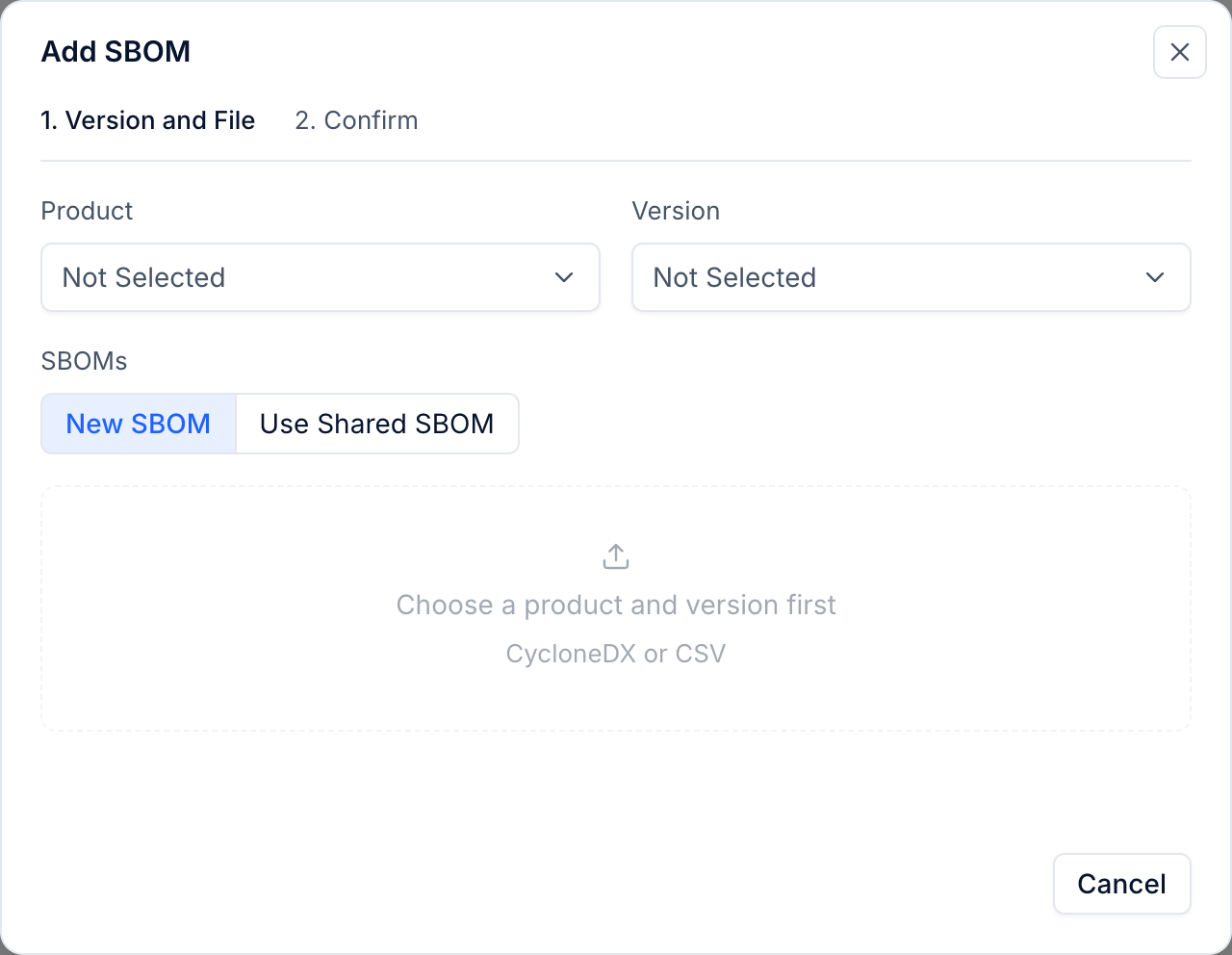
- Open Vulnerabilities → SBOMs and choose Add SBOM.
- Choose the Product and Version. To add a version at the same time, choose New Version in the list and enter its version number.
- Keep New SBOM selected and drop the file into the dialog, or click to choose it.
- Select Next. Nuxy shows the format it recognized, how many components it found and how many it could identify.
- Give the SBOM a name and select Import.
If the version is already released, Nuxy asks for a Reason for Change. The reason is kept in the version's history.
Identify Every Component
Nuxy can only check a component for vulnerabilities when it knows exactly which component it is, from an identifier such as a package URL (PURL) or CPE. Scan Coverage shows the share of components that are identified.
When some components are not identified, the SBOM page says so. Select Show Only These, then open Advanced to add the missing identifiers or suppliers. Components your organization makes itself can be marked as first-party; they are not checked against public vulnerability data.
Share One SBOM Between Products
When several products use the same software, such as a common SDK, tick Mark as Shared when you import it. For the other products, choose Use Shared SBOM in the upload dialog instead of uploading the file again. A version can have more than one SBOM, for example the firmware and a shared SDK.
After the Upload
The SBOM page shows Vulnerability scan: Analyzing while Nuxy checks the components, and the number of vulnerabilities found when it is done. Then go to Triage Vulnerabilities.
If the SBOM contains the Linux kernel, also upload a kernel build list to rule out kernel code you do not compile. See Generate a Kernel Build List.
To update the SBOM after a new build, choose Upload Again on the SBOM page. Tick Keep identifiers already filled in to keep the identifiers you added by hand.