

A risk assessment records which cybersecurity risks your product faces, how serious each one is, and which controls reduce it. Compliance assessments that ask for a risk assessment link to it.
Create the Assessment
Open Risk Management → Risk Assessments and choose New Assessment. The wizard has four steps.
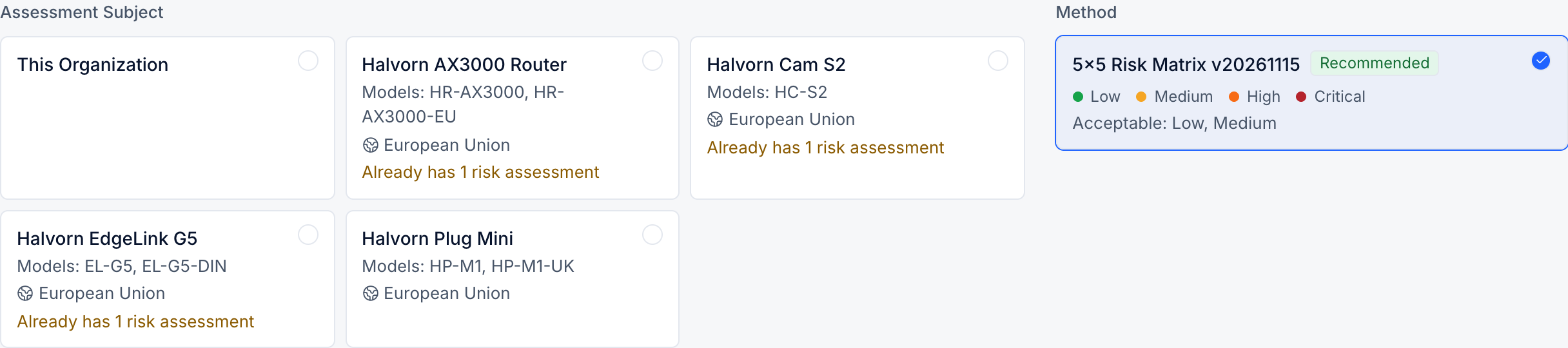
- Product and Method: choose the product, or This Organization for an assessment of the whole organization, and the scoring method. The method shows which risk levels it treats as acceptable.
- Product Capabilities: check the capabilities, prefilled from the product profile. Changes here are written back to the profile when you finish.
- Choose Templates: Nuxy recommends risk templates that match the capabilities. Coverage Gaps shows any capability no selected template covers.
- Confirm Suggestions: review the risks, assets and controls the templates will add, and untick any that do not apply.
Select Create Risk Assessment to finish.
Score and Treat Each Risk
Open a risk to score it. The inherent score is the risk before any controls; the residual score is what remains once the chosen controls are in place. Add a scoring reason where the score is not obvious.
Then choose a treatment and the controls that carry it out. If you accept a risk instead of reducing it, explain why it cannot be avoided or reduced; the treatment is saved once you do.
Each risk moves through To Score, To Treat, In Treatment and Treated (or Accepted). The Risk Matrix at the top shows the risks by likelihood and impact, before and after treatment, with the Acceptance Baseline drawn on it.
Controls
The Controls tab lists every control the assessment uses and its implementation status for this product. One control can reduce several risks.
Add More Risks
- Add Risk creates a risk of your own.
- Add from Templates adds risks from a template you did not choose in the wizard.
- Threat References lists components from the product's SBOMs with known vulnerabilities. Choose New Risk from This Component to turn one into a risk.
Review and Report
Assessments have a next review date. Nuxy shows a review reminder when something important changes, such as a new high-severity vulnerability on a released version. Choose Complete Review to record the result.
Choose Generate Report to produce a PDF of the assessment. The Statement of Applicability tab lists which requirements apply and why, derived from the risks.